Step1: Download the SMS Transfer Tool ;
Step 2: Unzip the file you downloaded just now and copy the installation file "GodswMobileSMSTransferSetup.CAB" to your mobile device. You may need to connect your device to a host computer using ActiveSync. You can also transfer the file using a memory card.
Step 3: On your device, navigate to the location of the CAB file using File Explorer. Click on the CAB file (displayed as the following screenshot) and click "Install" to begin the installation.
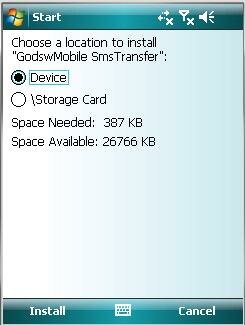
Step 4:Now installation completes. Select "OK" to continue.
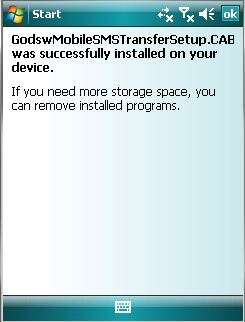
Install Completed
Now let’s use the software to finish the transfer job.
Step 5: Click "start" and then select programs. You will see the follow screen.
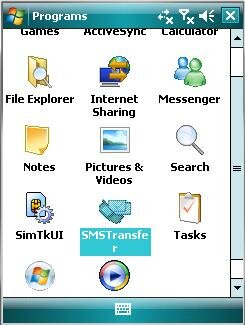
Step 6: Select the "SMSTransfer" in your mobile programs list to run it. You will see the follow screenshot.
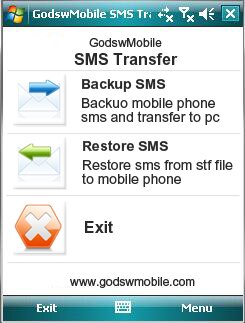
Step 7: Click on "Backup Messages" in the main interface to backup you SMS messages in mobile phone. You will see the follow screenshot.
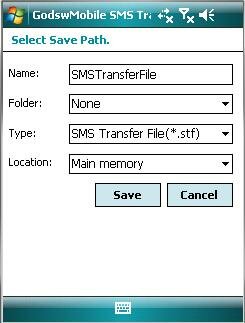
Step 8: Decide the file name, file format and location (The default setting is OK) for your SMS file and click on "Save" to start to backup process. You will see the follow screenshot.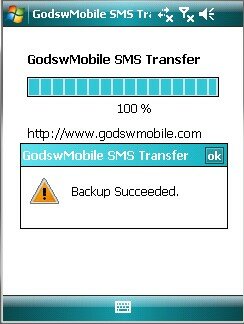
Step 9: After backup completes, all the SMS messages has been backup in a file on your phone. You can save it in your memory card or transfer it to your computer easily by ActiveSync.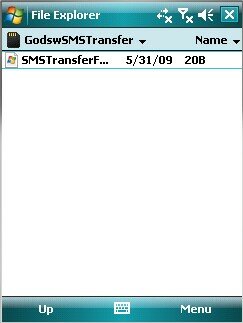
Backup SMS Completed
Download the SMS Transfer Tool for Windows Mobile Now!
Note: The trial version of Godsw SMS Transfer could only transfer 20 sms, to get the full version, please click HERE

没有评论:
发表评论