Step 1:Download GodswMobile Contacts Transfer;
Step 2:Unzip(Open) the file you downloaded just now and copy the installation file "WM6_GodswContactsTransferSetup.CAB" to your mobile device. You may need to connect your device to a computer using ActiveSync. You can also transfer the file using a memory card.
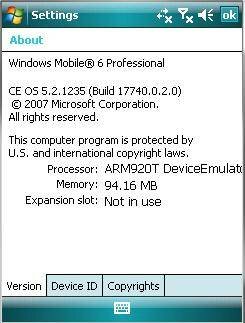
Note: To check system version of your mobile, please select "Start" -> "Settings" -> "System" -> "About",then you will see your system version. If you are using Windows Mobile 5, please copy the installation file "WM5_GodswContactsTransferSetup.CAB" instead.
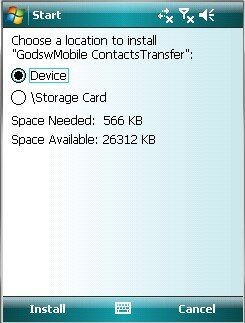
Step 3: On your mobile phone, navigate to the location of the CAB file using File Explorer. Click on the CAB file- "WM6_GodswContactsTransferSetup.CAB" and click "Install" to start the installation. You could choose install in your device or Storage Card as you wish (displayed as the following screenshot)
Step 4: Now installation has been completed. Select "OK" to continue.
Step 5: Now let’s use this software to backup and trasnfer contacts from mobile to computer.Click "Start"button and then select "Programs", you will see the follow screenshot.
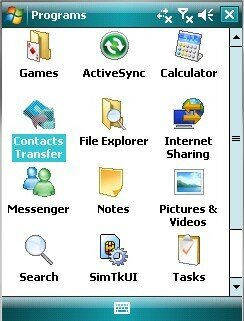
Step 6: Run”Contacts Transfer”,you can see the main windows of GodswMobile Contacts Transfer.

Step 7: Click the “Backup Contacts” button, and then you will see a screenshot the follow:
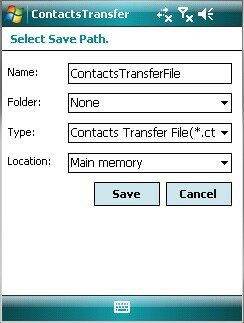
Step 8:Now you will be asked to input a backup name,select a folder,select a type of the backup file (txt. file or cts. file) and select a location of the file you are about to save. (The default setting is suit for normal users!).Click “Save” button to start backup. See the screenshot as follow:

Step 9:You will see a backup file on your mobile phone after backup completed.And then you can transfer this backup file to your computer simply by ActiveSync.
OK, you have successfuly transfer your contacts to PC and put it in a safer place.

没有评论:
发表评论