1 Backup your contacts may prevent a data loss disaster. Think of one day, you unluckily lost your phone, get it stolen, you may first lamenting the lost of my beloved HTC, what is even more urgent and desperate may be the loss of whole data, say, a contact list of your family, your fellows in primary school, your clients, your intimates...the list goes as fatal as it can be and as long as it can be.
2 Using Contacts Transfer will save you a lot of time transfering contacts. some times, especially you are a business man, you may need to transfer a long list of potential clients with names and phone numbers and emails to transfer from computer to your phones. And, when you buy a new phone, you will not have to spending a lot of transferring them. just a few seconds with Contacts Transfer.
3 Using Contacts Transfer will make your contacts management more easier and effective. it is more tricky to manage a list of hundreds of contacts including names, phone numbers, emails, address etc on a usually palm-sized phone. However, all will be different if you do them on a computer with Contacts Transfer Manager. Besides, you can even add phontos and ringtones for a person.
4 Using Contacts Transfer, you data will be more safe and protected. You control all you data. Compared with some online contacts backup, it will be more trustworthy and stable.
2010年5月28日星期五

2010年5月20日星期四
How to restore contacts to Windows Mobile phone?
Ok, we have already learnt how to how to transfer contacts from Window Mobile phone to PC and how to manage contacts on PC with GodswMobile Contacts Transfer and GodswMobile Contacts Manager. Today, we have the last step to go, that is how to restore these contacts from PC to Windows Mobile phones. This is really as easy as pie.
Step 1:Still, we begin with GodswMobile “Contacts Transfer”.You will see a screenshot as follow:

Step 2:Click the “Restore”button and you will see the follow screenshot, then select the file which you need to restore and then click “OK” to restore:
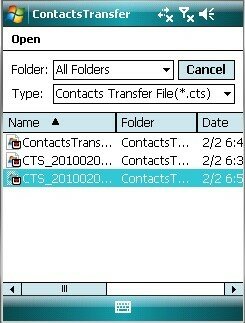
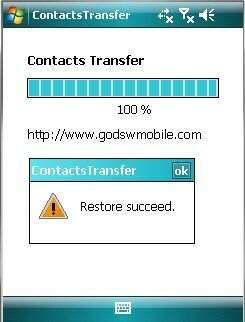
Step 3: in fact, when you see the following screenshot, you have almost done. the whole process just takes a few seconds even though there is a very large file of contacts.
NOTE: Godswmobile Contacts Transfer has a trial version , but you can only transfer up to 20 outlook contacts with it. You can download it directly from here. If you want to get the full version and transfer unlimited contacts, just click here to pay with security and get it instantly.
GodswMobile Contacts Transfer has a file size of just 1M, a tiny size but a great utility.
Step 1:Still, we begin with GodswMobile “Contacts Transfer”.You will see a screenshot as follow:
Step 2:Click the “Restore”button and you will see the follow screenshot, then select the file which you need to restore and then click “OK” to restore:
Step 3: in fact, when you see the following screenshot, you have almost done. the whole process just takes a few seconds even though there is a very large file of contacts.
NOTE: Godswmobile Contacts Transfer has a trial version , but you can only transfer up to 20 outlook contacts with it. You can download it directly from here. If you want to get the full version and transfer unlimited contacts, just click here to pay with security and get it instantly.
GodswMobile Contacts Transfer has a file size of just 1M, a tiny size but a great utility.
2010年5月13日星期四
How to manage Windows Mobile contacts on PC
Last Tuesday, we successfully transferred our contacts to personal computers. we are no longer worried about losing the whole contacts at once. But another problem surfaces, how to deal with all these saved long lists that seem all in a mess. Now, we are going to explore how we manage these contacts on PCs with GodswMobile Contacts Manager.
So, what can we do with GodswMobile Contacts Manager? Here is a list:
* Read all of your contacts on computer.
* Add new contacts on computer
* Manage contacts including delete,cut,copy,paste.
* Set photo and ringtone for personal contacts
* Switch contacts between sim card and mobile outlook
* Other things you what to do this the contacts
Fabulous? isn't it? GodswMobile Contacts Manager is a free tool designed by Godsw Mobile to help you view and manage the backuped contacts of your windows mobile phone on your computer easily. Let's go and experience !
View and Read Contacts
Step 1:Fistly,you use GodswMobile Contacts Transfer to backup your contacts into a .cts file in your mobile phone. Details please view: Transfer contacts from windows mobile phone to computer.
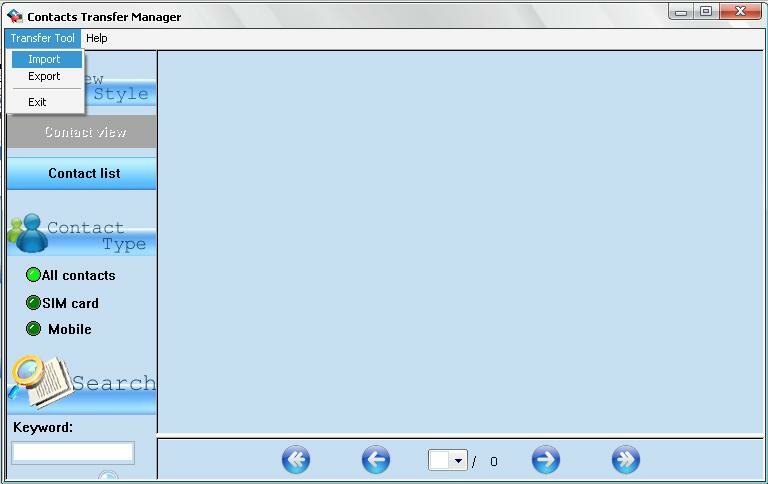
Step 2:Transfer the contacts backup file(*.cts) from your mobile phone to your computer by ActiveSync. Then run the 'GodswMobile Contacts Manager.exe' on your computer. Simply click 'File' -> 'Import'. See the screenshot as following:
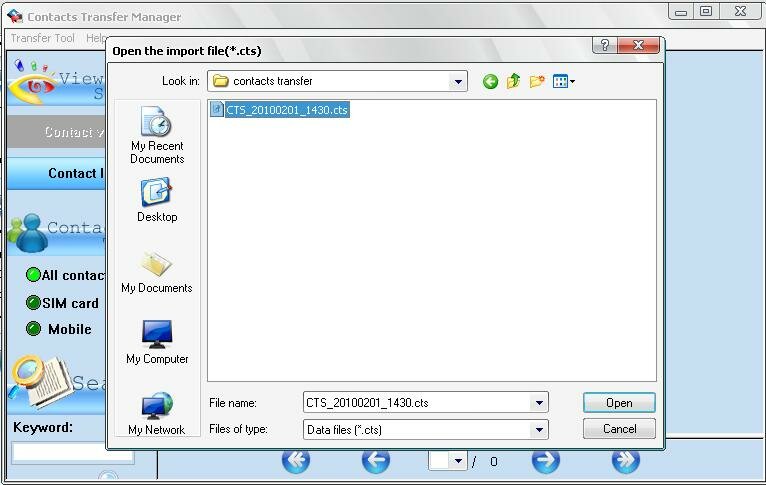
Step 3: Then you will see there is a popup window. You can simply select a contacts backup file which you wanna edit or view and then click 'open'.
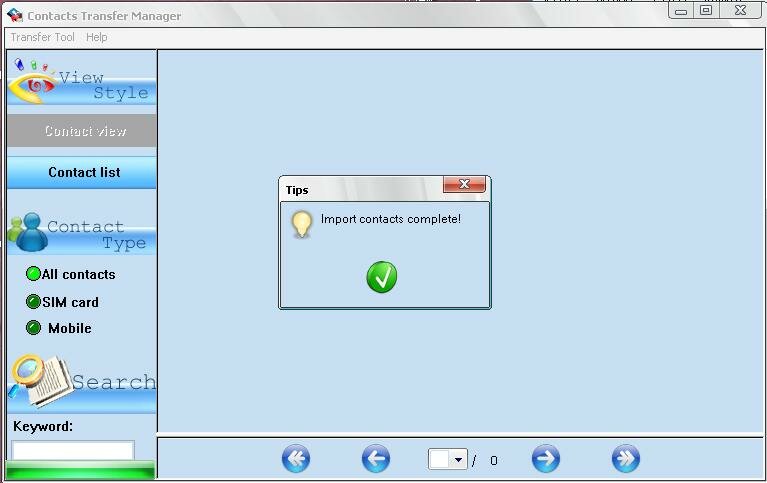
Step 4:Now all contacts you selectd are imported into GodswMobile Contacts Manager. See as the following screenshot:
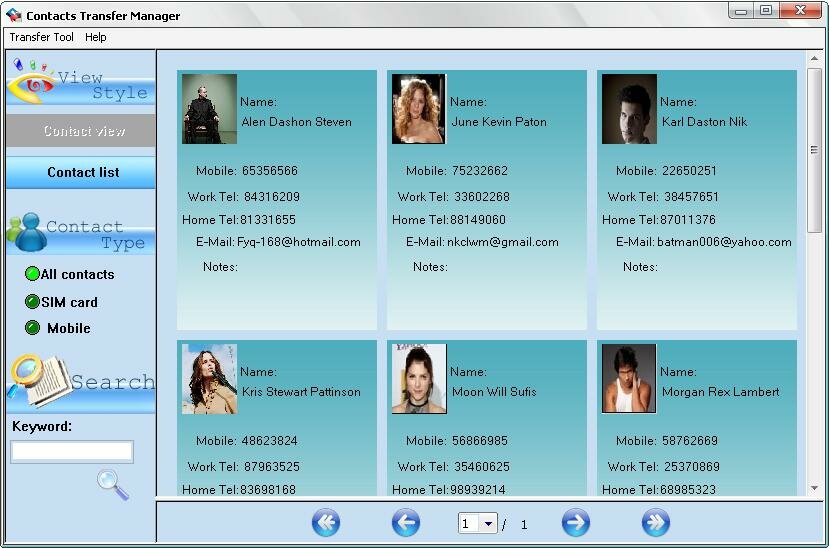
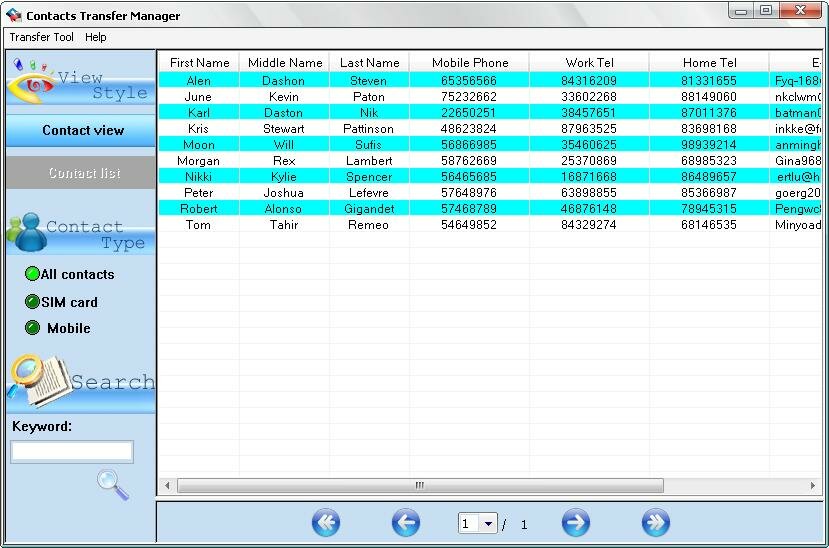
Step 5:There are different view modes for you to view or edit your contacts. For example, if you check 'Contact View' box, the contacts will be displayed as the above mode; if you check “'Contact List' box, the contacts will be listed in the following way (see the following screenshot).
Edit the contacts information, set photo and ringtone for every contact as you like.
Double Click on which contact you wanna edit, then an edit screen will popup, see as follows screenshot:
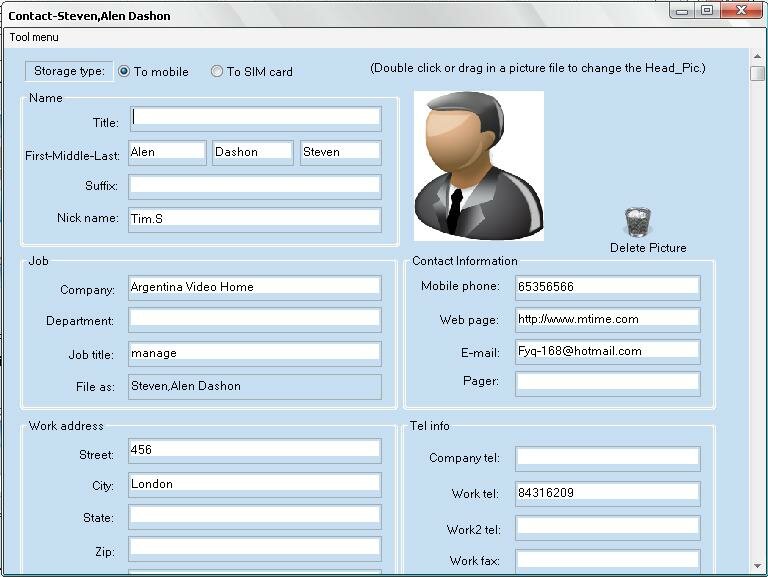
Now,you can add or edit its detailed information, such as name info, company address and so on. If you want to set a photo for this contact, double click on the default photo, and then you could choose a pic in your computer as the contacts photo:
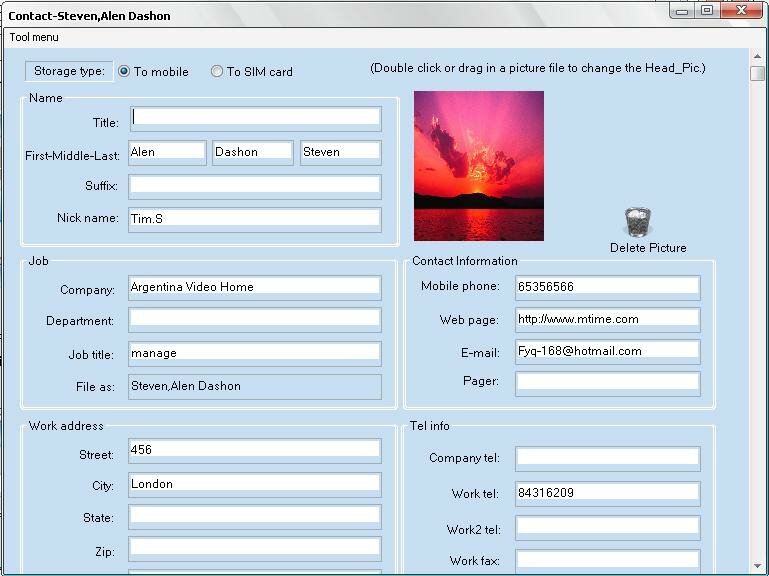
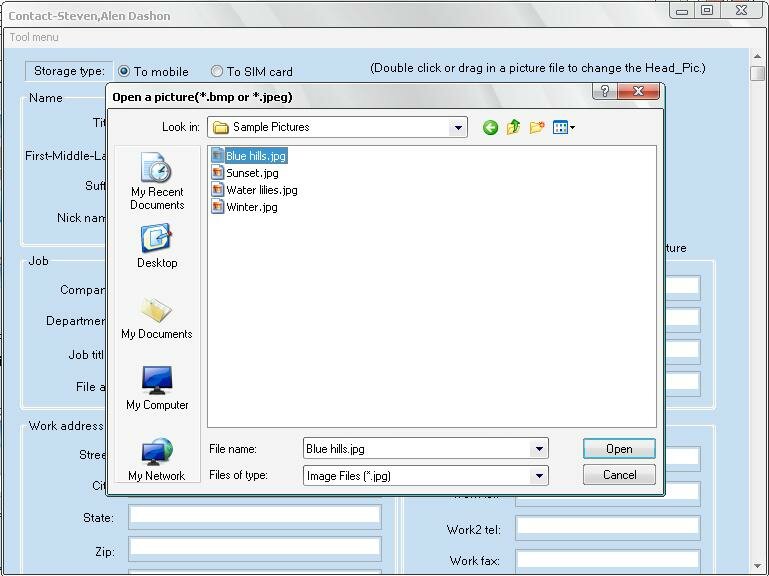
You could also drag a picture to change the contact phone..
In a case that you wanna cancel a photo setting for that contact, you can click the 'Delete photo'.
In this editing screen, you can also set a special ringtone for the contact. Simply select 'Browse' option from ringtone dropdown menu (see the following screenshot), and then select your favourate music file from your computer. It supports .mp3, .wma and .wav formats files.
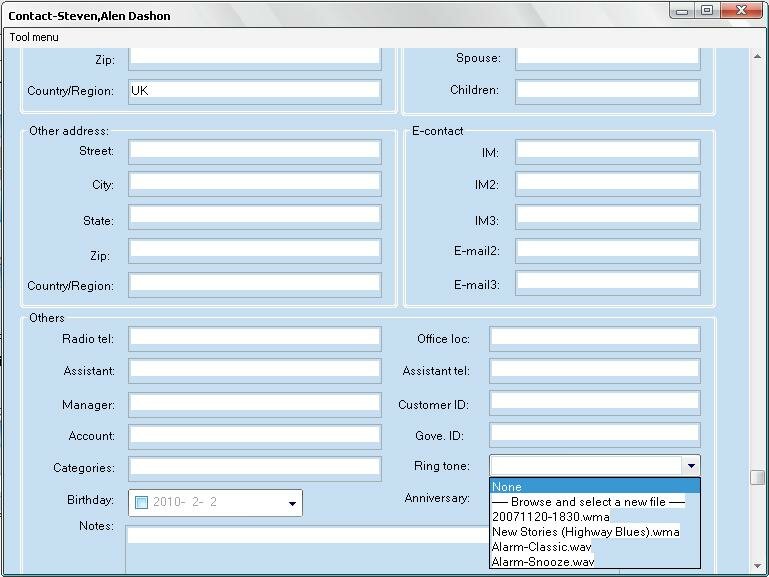
After finish editing, click the menu and choose 'save and exit'. If you don't want to save what you have edited, please close the editing windows before saving.:
Switch contact between sim card and outlook
In the storage type, you can switch contacts to sim card or switch contacts to mobile, which can help you switch contacts between sim card and outlook easily.
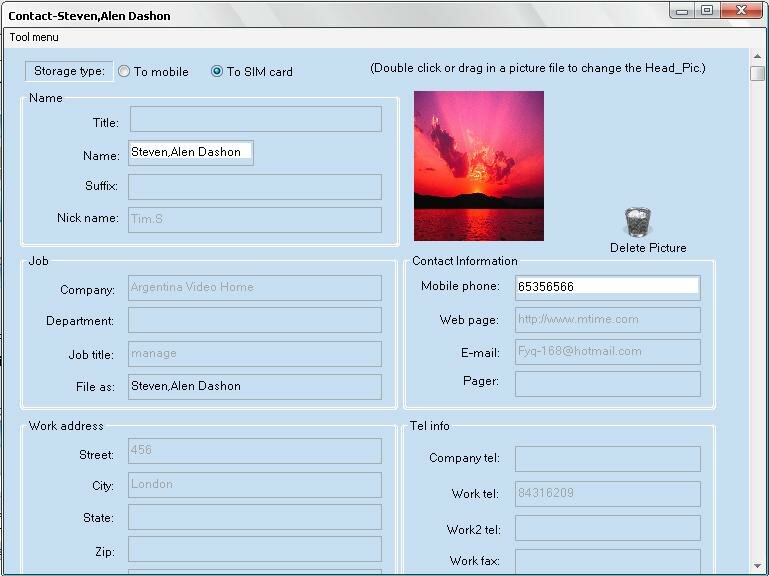
Add new contacts
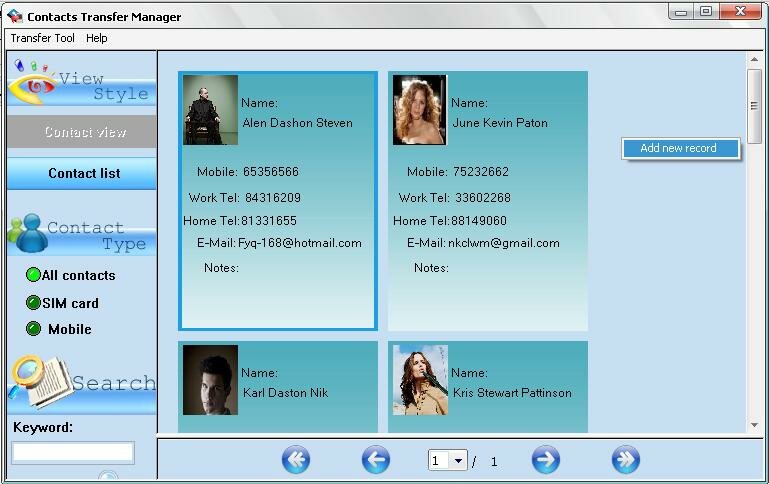
Right Click to choose 'Add New Record' GodswMobile Contacts Manager,you can add a new contact simply.
Output your edited contacts as .cts Backup File and restore back to your phone.
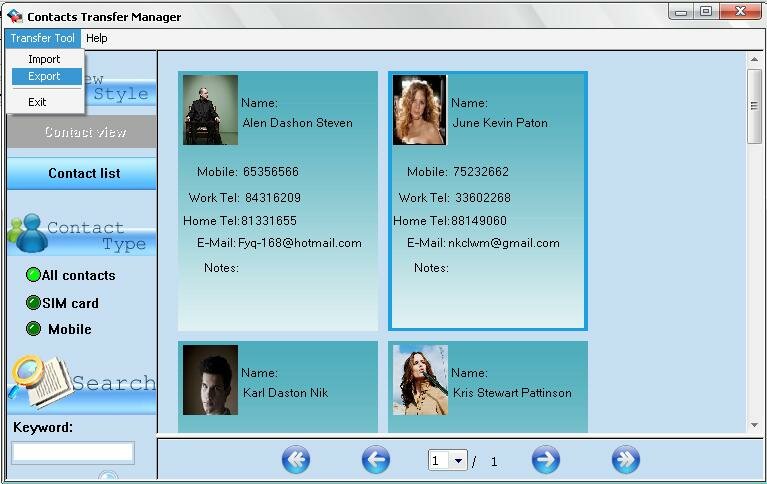
You can export the contacts to a “.cts” backup file (*.cts) by Clicking the 'Export' option. This backup file can be restored back to and read as contacts in your window mobile phone .
So, what can we do with GodswMobile Contacts Manager? Here is a list:
* Read all of your contacts on computer.
* Add new contacts on computer
* Manage contacts including delete,cut,copy,paste.
* Set photo and ringtone for personal contacts
* Switch contacts between sim card and mobile outlook
* Other things you what to do this the contacts
Fabulous? isn't it? GodswMobile Contacts Manager is a free tool designed by Godsw Mobile to help you view and manage the backuped contacts of your windows mobile phone on your computer easily. Let's go and experience !
View and Read Contacts
Step 1:Fistly,you use GodswMobile Contacts Transfer to backup your contacts into a .cts file in your mobile phone. Details please view: Transfer contacts from windows mobile phone to computer.
Step 2:Transfer the contacts backup file(*.cts) from your mobile phone to your computer by ActiveSync. Then run the 'GodswMobile Contacts Manager.exe' on your computer. Simply click 'File' -> 'Import'. See the screenshot as following:
Step 3: Then you will see there is a popup window. You can simply select a contacts backup file which you wanna edit or view and then click 'open'.
Step 4:Now all contacts you selectd are imported into GodswMobile Contacts Manager. See as the following screenshot:
Step 5:There are different view modes for you to view or edit your contacts. For example, if you check 'Contact View' box, the contacts will be displayed as the above mode; if you check “'Contact List' box, the contacts will be listed in the following way (see the following screenshot).
Edit the contacts information, set photo and ringtone for every contact as you like.
Double Click on which contact you wanna edit, then an edit screen will popup, see as follows screenshot:
Now,you can add or edit its detailed information, such as name info, company address and so on. If you want to set a photo for this contact, double click on the default photo, and then you could choose a pic in your computer as the contacts photo:
You could also drag a picture to change the contact phone..
In a case that you wanna cancel a photo setting for that contact, you can click the 'Delete photo'.
In this editing screen, you can also set a special ringtone for the contact. Simply select 'Browse' option from ringtone dropdown menu (see the following screenshot), and then select your favourate music file from your computer. It supports .mp3, .wma and .wav formats files.
After finish editing, click the menu and choose 'save and exit'. If you don't want to save what you have edited, please close the editing windows before saving.:
Switch contact between sim card and outlook
In the storage type, you can switch contacts to sim card or switch contacts to mobile, which can help you switch contacts between sim card and outlook easily.
Add new contacts
Right Click to choose 'Add New Record' GodswMobile Contacts Manager,you can add a new contact simply.
Output your edited contacts as .cts Backup File and restore back to your phone.
You can export the contacts to a “.cts” backup file (*.cts) by Clicking the 'Export' option. This backup file can be restored back to and read as contacts in your window mobile phone .
2010年5月4日星期二
How to transfer contacts from Windows Mobile to computer
What a catastrophe it would be to lose all your mobile phone contacts and all your connects with friends, family, collegues and clients are cut off suddenly! Well, follow this article and you don't have to worry about it any more. In this article and the following articles, we will instruct you step by step how to transfer contacts from Window Mobile to PC, how to manage your contacts on PC and how to restore contacts on PC to mobile phones. Ok, let's begin by transfer contacts from Windows Mobile to PC with GodswMobile Contacts Transfer.
Step 1:Download GodswMobile Contacts Transfer;
Step 2:Unzip(Open) the file you downloaded just now and copy the installation file "WM6_GodswContactsTransferSetup.CAB" to your mobile device. You may need to connect your device to a computer using ActiveSync. You can also transfer the file using a memory card.
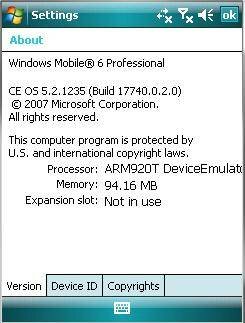
Note: To check system version of your mobile, please select "Start" -> "Settings" -> "System" -> "About",then you will see your system version. If you are using Windows Mobile 5, please copy the installation file "WM5_GodswContactsTransferSetup.CAB" instead.
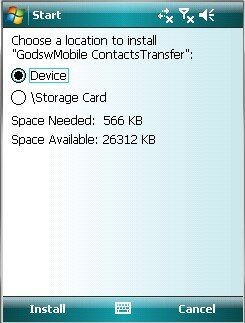
Step 3: On your mobile phone, navigate to the location of the CAB file using File Explorer. Click on the CAB file- "WM6_GodswContactsTransferSetup.CAB" and click "Install" to start the installation. You could choose install in your device or Storage Card as you wish (displayed as the following screenshot)
Step 4: Now installation has been completed. Select "OK" to continue.
Step 5: Now let’s use this software to backup and trasnfer contacts from mobile to computer.Click "Start"button and then select "Programs", you will see the follow screenshot.
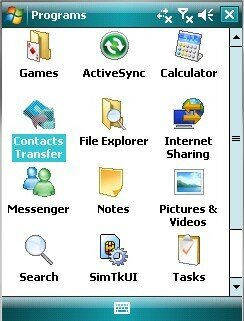
Step 6: Run”Contacts Transfer”,you can see the main windows of GodswMobile Contacts Transfer.
Step 7: Click the “Backup Contacts” button, and then you will see a screenshot the follow:
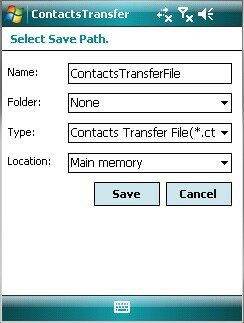
Step 8:Now you will be asked to input a backup name,select a folder,select a type of the backup file (txt. file or cts. file) and select a location of the file you are about to save. (The default setting is suit for normal users!).Click “Save” button to start backup. See the screenshot as follow:

Step 9:You will see a backup file on your mobile phone after backup completed.And then you can transfer this backup file to your computer simply by ActiveSync.
OK, you have successfuly transfer your contacts to PC and put it in a safer place.
Step 1:Download GodswMobile Contacts Transfer;
Step 2:Unzip(Open) the file you downloaded just now and copy the installation file "WM6_GodswContactsTransferSetup.CAB" to your mobile device. You may need to connect your device to a computer using ActiveSync. You can also transfer the file using a memory card.
Note: To check system version of your mobile, please select "Start" -> "Settings" -> "System" -> "About",then you will see your system version. If you are using Windows Mobile 5, please copy the installation file "WM5_GodswContactsTransferSetup.CAB" instead.
Step 3: On your mobile phone, navigate to the location of the CAB file using File Explorer. Click on the CAB file- "WM6_GodswContactsTransferSetup.CAB" and click "Install" to start the installation. You could choose install in your device or Storage Card as you wish (displayed as the following screenshot)
Step 4: Now installation has been completed. Select "OK" to continue.
Step 5: Now let’s use this software to backup and trasnfer contacts from mobile to computer.Click "Start"button and then select "Programs", you will see the follow screenshot.
Step 6: Run”Contacts Transfer”,you can see the main windows of GodswMobile Contacts Transfer.
Step 7: Click the “Backup Contacts” button, and then you will see a screenshot the follow:
Step 8:Now you will be asked to input a backup name,select a folder,select a type of the backup file (txt. file or cts. file) and select a location of the file you are about to save. (The default setting is suit for normal users!).Click “Save” button to start backup. See the screenshot as follow:
Step 9:You will see a backup file on your mobile phone after backup completed.And then you can transfer this backup file to your computer simply by ActiveSync.
OK, you have successfuly transfer your contacts to PC and put it in a safer place.
2010年4月27日星期二
Six Very Good Reasons Why You Need Mobile Text Message Backup
1 You may find your mobile phone is flooded with text messages one day. Painfully, you are not in a position to delete those beloved messages either because they are funny jokes or important messages. Then you need text message backup to get rid of the storage runout.
2 Lost your mobile phone? Mobile system crashed? Or mobile phone being stolen or robbed? No one ever expects that, but it does happen on somebody. Maybe next one is you. Why not cautiously have a backup for your text messages in advance?
3 Get lengthy text messages to read or to edit and send to others? It is really burdensome to do it on that small screen and tiny keyboard. By using a text message backup software, you can do them all on your computer which is more comfortable for you.
4 Have you got some messages that are of emotional significance with your family, your boyfriend or girlfriend, or someone special to your life ? It is suggested that you make a backup and print it out, which will be more convenient for you to read later.
5 If you are a salesman or a businessman, and some communications or exchanges happen to be made over text messages. It is urgent to make a backup of the information. Because it can be very valuable and fatal once it is lost.
6 While using a mobile call recorder to make an electronic call diary becomes more and more popular, have you ever considered making a text message diary, just image what an amazing thing it would be when you read over those messages that draw a picture of your past days.
2 Lost your mobile phone? Mobile system crashed? Or mobile phone being stolen or robbed? No one ever expects that, but it does happen on somebody. Maybe next one is you. Why not cautiously have a backup for your text messages in advance?
3 Get lengthy text messages to read or to edit and send to others? It is really burdensome to do it on that small screen and tiny keyboard. By using a text message backup software, you can do them all on your computer which is more comfortable for you.
4 Have you got some messages that are of emotional significance with your family, your boyfriend or girlfriend, or someone special to your life ? It is suggested that you make a backup and print it out, which will be more convenient for you to read later.
5 If you are a salesman or a businessman, and some communications or exchanges happen to be made over text messages. It is urgent to make a backup of the information. Because it can be very valuable and fatal once it is lost.
6 While using a mobile call recorder to make an electronic call diary becomes more and more popular, have you ever considered making a text message diary, just image what an amazing thing it would be when you read over those messages that draw a picture of your past days.
2010年4月26日星期一
GodswMobile updated its SMS Transfer to V 2.1
SMS Transfer, which is an application designed for cell phones running Microsoft Windows Mobile 5 or Windows Mobile 6 system, allows you to transfer and backup your SMS messages between mobile phone and desktop computer.
Thanks to its simplicity and great practicality, SMS Transfer has received great applause from customers since its first appearance to the market.
In response to the request of our customers, we have updated SMS Transfer to V2.1. Mainly, we have added the following new functions while maintained other basic functions.
• View and edit exported text message on PC
• Copy and paste your exported SMS
• Export SMS to TXT file on PC
• Support VGA and WVGA Screen (eg. HTC Touch HD/2 and Diamond/2)
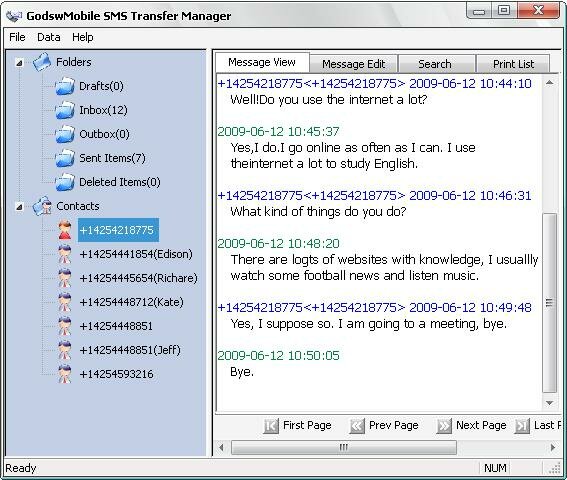
These newly added features will enable you to see and edit SMS messages in a text file on your computer. So you can make possible changes to your SMS messages and backup what you really want and edit or delete what you don’t want to backup. Besides, SMS Transfer 2.1 now support VGA and WVGA screen, so you don’t have to worry about using it on your latest HTC mobile phones.
Thanks to its simplicity and great practicality, SMS Transfer has received great applause from customers since its first appearance to the market.
In response to the request of our customers, we have updated SMS Transfer to V2.1. Mainly, we have added the following new functions while maintained other basic functions.
• View and edit exported text message on PC
• Copy and paste your exported SMS
• Export SMS to TXT file on PC
• Support VGA and WVGA Screen (eg. HTC Touch HD/2 and Diamond/2)
These newly added features will enable you to see and edit SMS messages in a text file on your computer. So you can make possible changes to your SMS messages and backup what you really want and edit or delete what you don’t want to backup. Besides, SMS Transfer 2.1 now support VGA and WVGA screen, so you don’t have to worry about using it on your latest HTC mobile phones.
2009年7月16日星期四
Restore SMS to Windows Mobile
Here is a step by step guide for you to restore sms to Windows Mobile Phone.
Before backup, the mobile phone do not have any messages as a brand new phone.

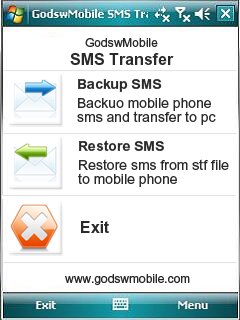
Step 1: Click on "SMS Transfer" in programs list to run it.
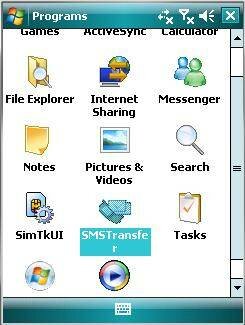
Step 2: Click on "Restore Messages" in the main interface to save your SMS messages into mobile phone.
Before backup, the mobile phone do not have any messages as a brand new phone.
Step 1: Click on "SMS Transfer" in programs list to run it.
Step 2: Click on "Restore Messages" in the main interface to save your SMS messages into mobile phone.
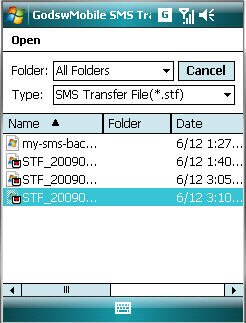
Step 3: Select and click on the stf file to be restored.
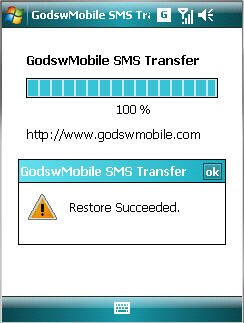
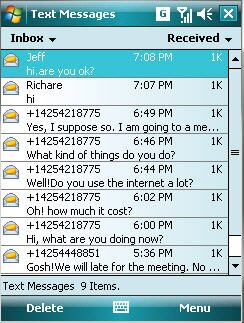
After Restore Succeed. You will see all you message come back to your phone now!

订阅:
博文 (Atom)